Sign in
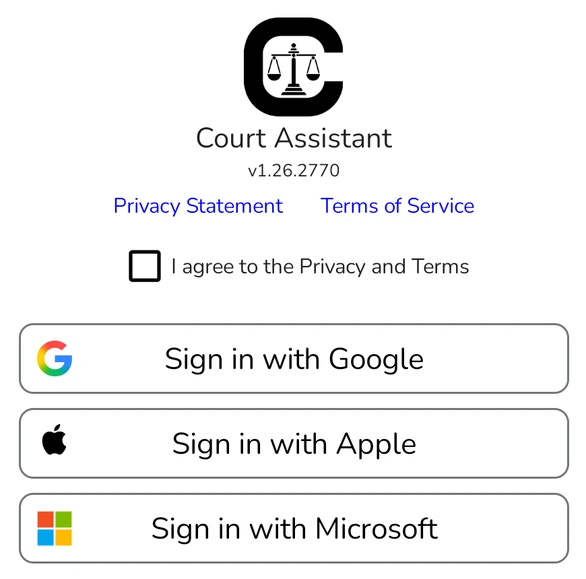
- Open Court Assistant.
- Read the Privacy Statement and Terms of Service using the links on the screen.
- Tick I agree to the Privacy and Terms.
- Tap the button for the account you want to use: Sign in with Google, Sign in with Apple or Sign in with Microsoft.
- Choose or enter your account on the page that opens. Court Assistant then opens signed in.
If you tap a sign-in button without ticking the box, Court Assistant asks you to read the Privacy Statement and Terms of Service first.
Create your first folder
- Open the Cases tab.
- Tap in the top toolbar.
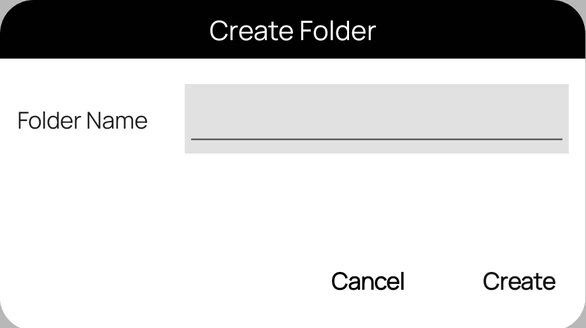
- Enter a Folder Name, for example your court or a client group, and tap Create.
Add your first case
- Tap the new folder to open it.
- Tap Add Case in the top toolbar.
- Choose the court, how to search, and enter the case details.
- Tap Add. The case appears in the folder, and it shows on the home screen on the dates it is listed.