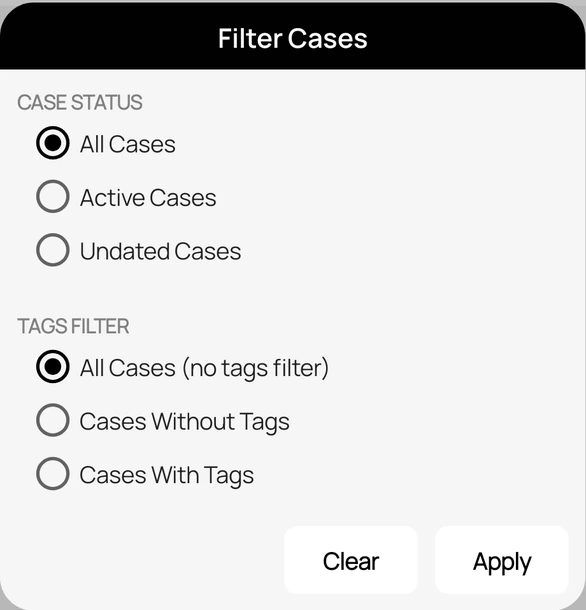
Choose the date
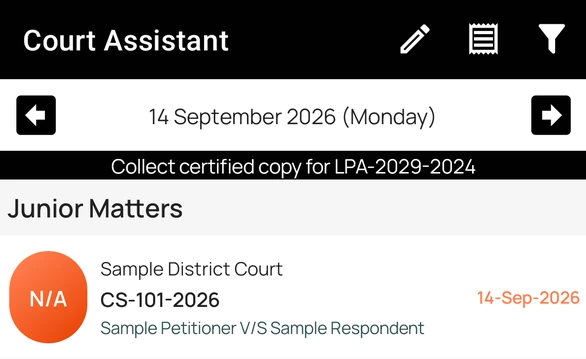
- Open the app home screen. It shows the cases from your folders that are listed for the date at the top.
- Use the arrow buttons to move to the previous or next working day.
- To jump to another date, tap the date itself, pick a day in the calendar, and tap OK.
When nothing is listed for the date, the home screen says so and suggests browsing the monthly case calendar.
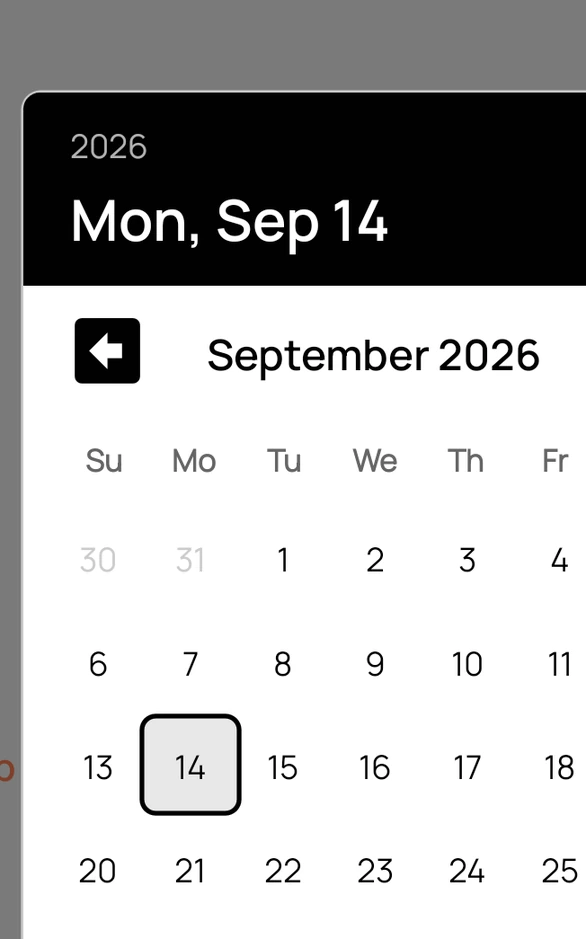
Filter the day's cases
- Wait for the cases for the date to finish loading. Filter becomes available in the top toolbar.
- Tap Filter.
- Under Case Status, choose All Cases, Active Cases, or Undated Cases.
- Under Tags Filter, choose Cases With Tags and tap tags, or Cases Without Tags.
- Tap Apply. To see the full list again, open Filter and tap Clear.
The filter works the same way as on the Cases screen. It applies only to the selected date and resets when you load another date.