Select the folders to share
- Ask the other person to create their own Court Assistant account and sign in at least once.
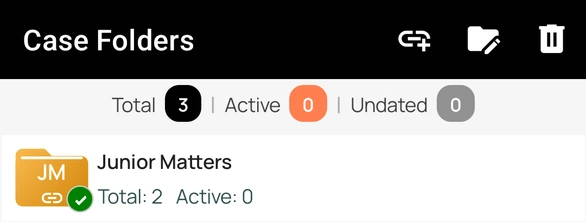
- Open Cases to view your case folders.
- Press and hold a folder until it is selected. Tap other folders if you want to share more than one.
- Tap the Link action in the top toolbar.
Important: Share access through Link Folder. Do not give anyone your Google credentials or other sign-in details.
Choose the account and permission
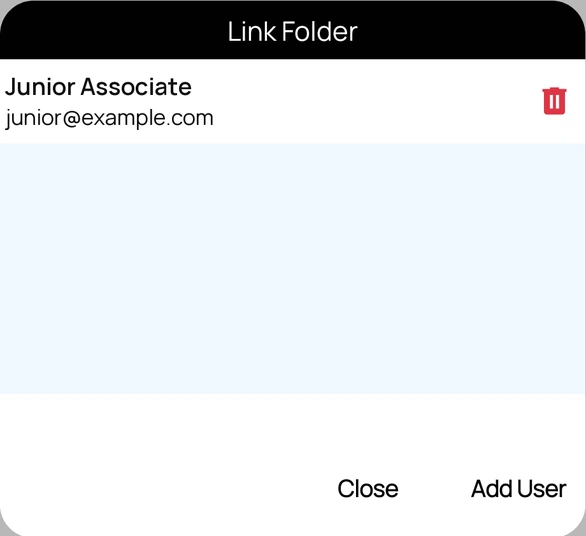
- If you selected one folder that is already linked, the dialog first lists its linked users. Tap Add User to show the email field.
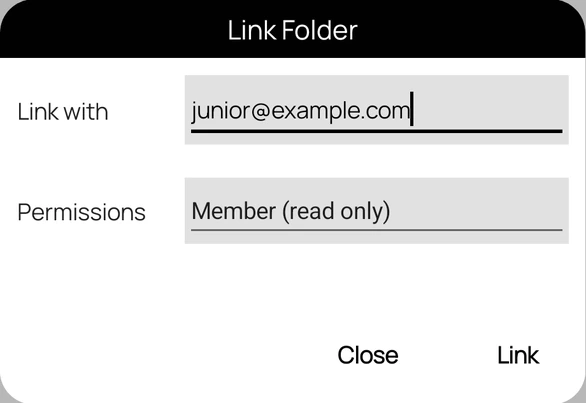
- Enter the email address registered to the other person's Court Assistant account.
- Choose Admin (All rights) if they should manage cases, the folder, and linked users.
- Choose Member (read only) if they should only view the folder and its cases.
- Tap Link to confirm.
Only the folders you select are shared. Other folders and the rest of your account remain separate. A linked folder shows a link symbol on its folder icon.
What linked users will see
- The linked folder and its existing cases appear in each linked account.
- Cases added to the linked folder later appear automatically for linked users after the app refreshes.
- Admins can update the shared folder; members have read-only access.
- Each person continues to sign in with their own account.
Unlink a user or revoke access
- From Cases, press and hold one linked folder to select it.
- Tap the Link action.
- Find the linked user and tap the delete icon beside their name.
- Tap Unlink to confirm. The folder is then removed from that account.
Only a folder admin can link users, change sharing, or revoke another user's access.
If linking does not work
- Account not found: confirm the email address and ask the recipient to sign in to Court Assistant at least once.
- Folder name already exists: the recipient must rename their folder with the same name before you link yours.
- "Only Admins are allowed to share this list.": one of the selected folders was shared with you as a member. Ask a folder admin to link it, or deselect that folder.