Create briefs
- Open Cases and tap the folder with the cases.
- To create briefs for only some cases, press and hold to select them. Otherwise all cases in the folder are used.
- Tap in the top title bar and select Create Briefs.
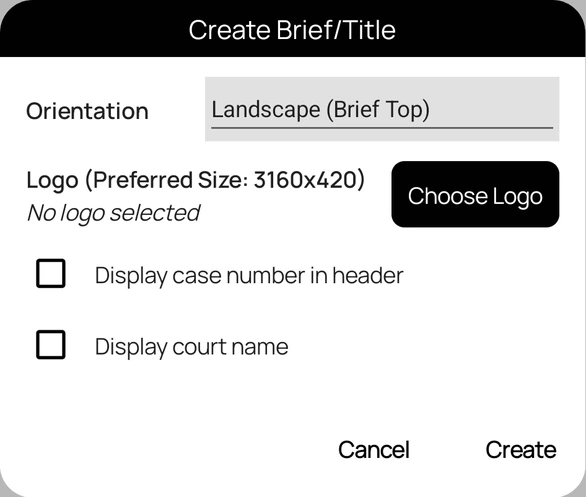
- Choose the Orientation: Landscape (Brief Top) for A4 brief tops, or Portrait (Paperbook Title) for legal-size titles.
- Optionally tap Choose Logo, and tick Display case number in header or Display court name.
- Tap Create. Save, print, or share the PDF.
Your choices are remembered for next time.
Good to know
- The recommended logo size is 3160×420 for landscape and 1800×2250 for portrait.
- Create Briefs appears only when briefs are enabled for your account and the folder has cases.
- "No cases available to create briefs for.": add cases to the folder first.