Add a file to a case
- Open a case from a folder, search, or the cause list.
- Tap in the top title bar and select Add File.
- Choose a PDF file from your phone. Only PDF files can be attached.
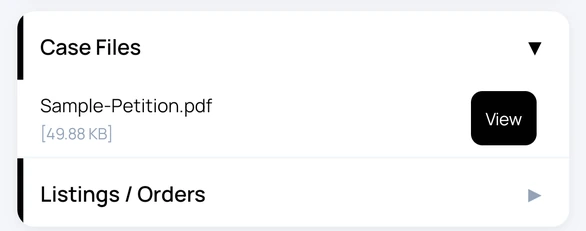
- Wait for the upload to finish. The file then appears with the case files, and you can tap View to open it.
If a file with the same name is already attached, you are asked whether to overwrite it.
Plan: case files use cloud storage, which is included in paid plans. The Free plan does not include storage.
Check and free up storage
- Open Settings and expand your plan section.
- Tap Cloud storage to open Storage & Files.
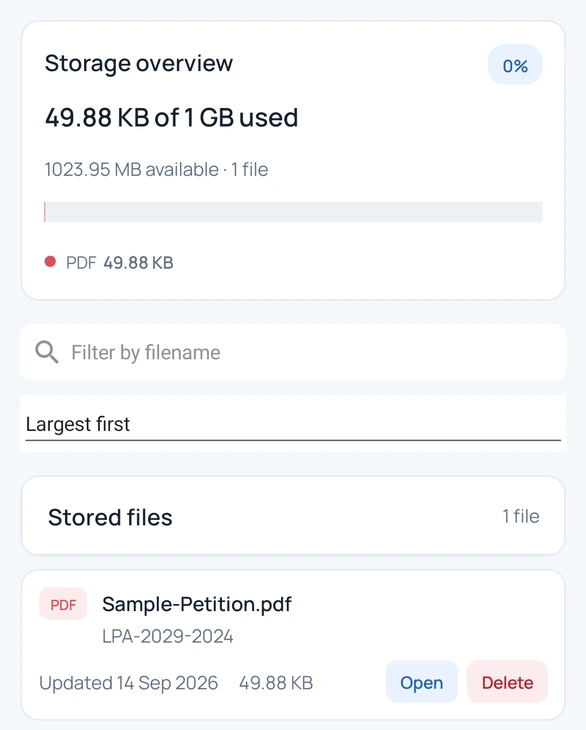
- Review the storage overview to see how much space you have used.
- Use Filter by filename to find a file, or change the sort order (for example Largest first) to see what uses the most space.
- Tap Open to view a file or Delete to remove it.
Deleting a file is permanent and removes it from its case. Court Assistant asks you to confirm first.