Take a snapshot
- Open Settings and expand the section with your name and email.
- Tap Snapshots.
- Tap Take a Snapshot. When you see "Snapshot ready - choose where to save it.", your phone's share options open.
- Save or share the .casnap file to a safe place, such as your cloud drive or email.
A snapshot contains your folders, tags, private case notes, day notes, and tracked searches. Uploaded case files are not included.
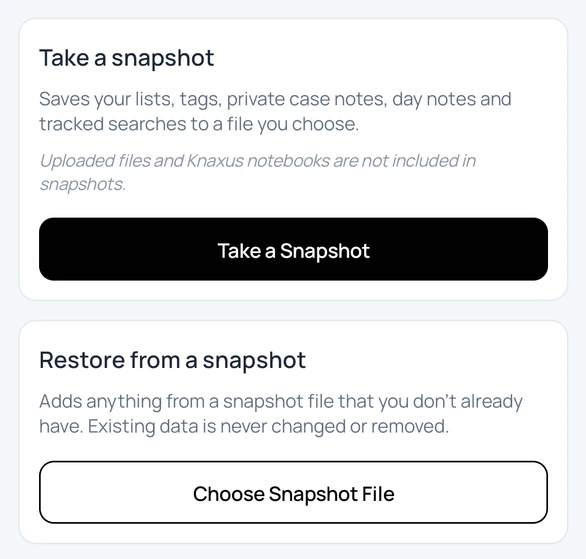
Restore from a snapshot
- Open Settings → Snapshots.
- Tap Choose Snapshot File and select the .casnap file.
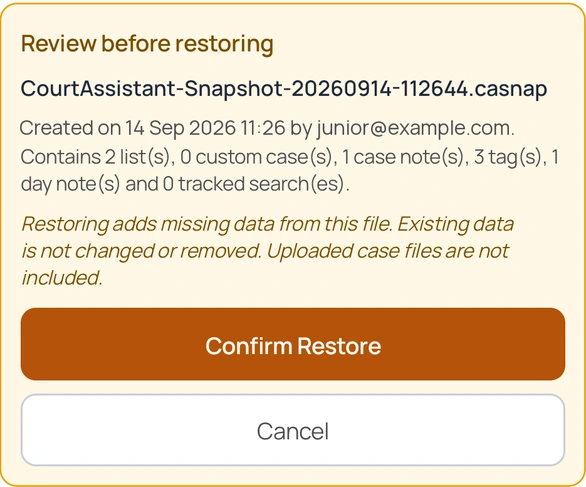
- Check the details under Review before restoring: when the snapshot was created and what it contains.
- Tap Confirm Restore. A summary shows how many folders, notes, tags, and tracked searches were restored. If everything in the file is already in your account, each count is 0.
Safe to repeat: restoring only adds items you don't already have. Existing folders, tags, and notes are never changed or removed.
Good to know
- A folder with the same name as one you already have is skipped, not merged.
- A note is skipped if the case already has a note in your account.
- Restored folders are personal to you. Folder sharing is not restored; link the folder again if needed.
- If you don't see Snapshots in Settings, it is not available on your account yet.