Open NoteA for a case
- On a tablet or computer, open a case from a folder, search, or the cause list.
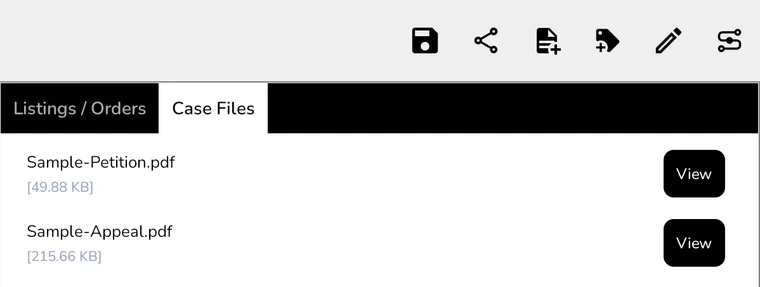
- Tap NoteA, the last icon in the case's top bar.
- The first time, NoteA is created for the case. There is nothing to set up, and each case has one NoteA.
Availability: NoteA works on tablets and computers, not phones, and only if it is included in your plan. It isn't available for custom cases. NoteA is in preview, so it may change in a future update.
Add documents
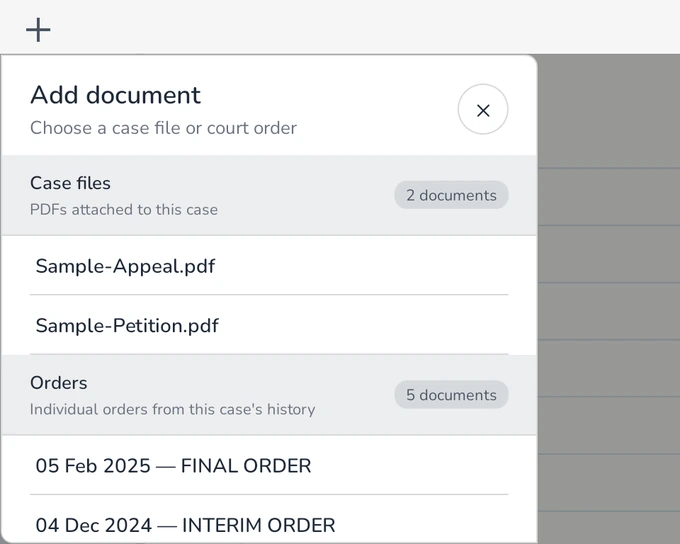
- Tap Add a document, or + beside the document tabs.
- In Add document, choose a PDF from Case files (PDFs attached to the case) or a court order from Orders.
- The document opens in a tab. Add more documents to keep several open at once.
Tap ✕ on a tab to close it. Your notes and tags for that document are kept, and come back when you add it again.
To use your own PDFs, first attach them to the case.
Find your way around
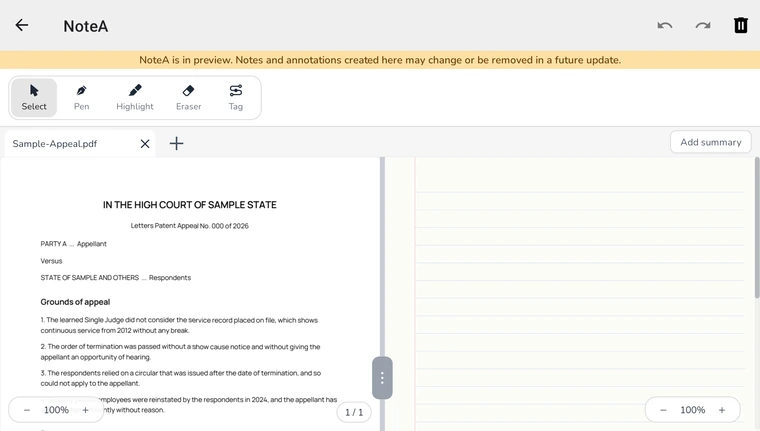
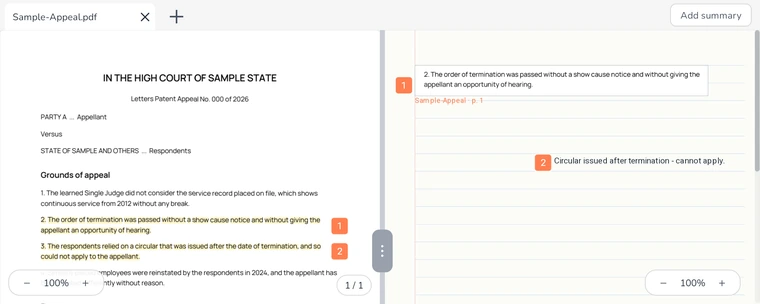
- The document is on the left and your ruled notes page is on the right. Drag the handle between them to change their widths.
- Each side has its own zoom control. Tap the percentage to return to 100%.
- Select scrolls, follows links, and moves notes. Pen and Highlight draw on the document or the notes page, and Eraser removes strokes.
- Two fingers always scroll, whichever tool is selected. Once you use a stylus, your finger scrolls and only the stylus draws.
- Undo and Redo are in the top bar.
Tag a passage
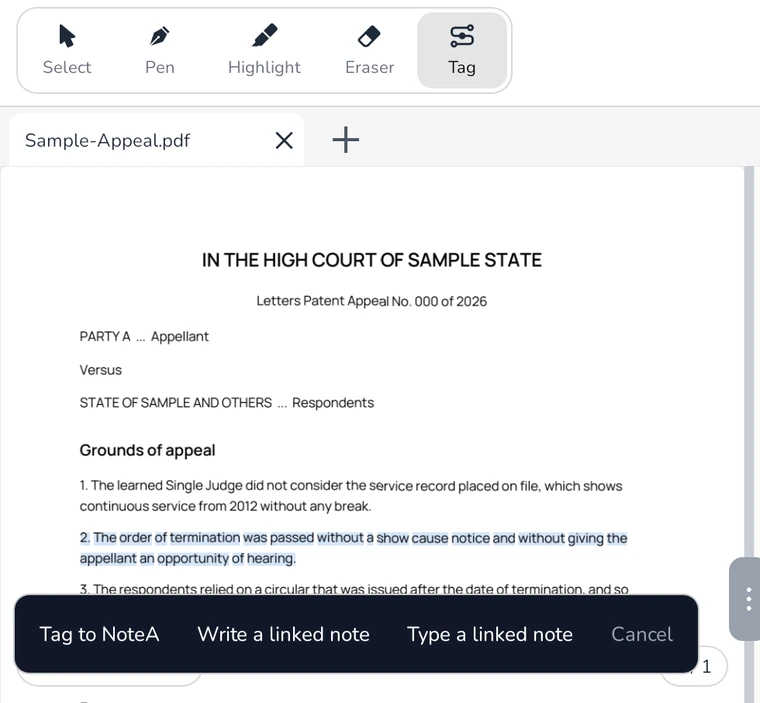
- Tap Tag, then draw a loop around the passage on the document.
- Choose what to do with it:
- Tag to NoteA places a picture of the passage on your notes page.
- Write a linked note lets you write by hand next to it.
- Type a linked note asks you to tap where the note should go, then type it and tap Done.
A tag is a picture of the page with its document name and page number, so it always matches the original exactly.
Jump between a note and its source
- A tagged passage and its note carry the same number.
- With Select, tap the number, the note, or the passage to jump to the other side. If the passage is in another document, its tab opens first.
- Press and hold a note, then drag, to move it.
- Press and hold a number, then choose Remove link to delete a tag and its note. Tap Undo to bring them back.
To draw lines between passages and their notes, turn on Show NoteA connection in Settings.
Saving and syncing
- NoteA saves on your device as you work.
- If cloud sync is included in your plan, NoteA syncs when you leave it. If it can't sync, you see NoteA not synced. Your work stays saved on the device, and you can choose Leave or Stay.
- If NoteA was changed on another device, choose Keep this device's NoteA, Use cloud NoteA, or Decide later. The copy you don't keep is replaced.
- If a PDF is updated, NoteA shows This PDF has been updated. Links to the old version appear dashed until you tap Use updated PDF.
Delete: the delete icon in the top bar permanently removes every note, highlight, tag, and link in the case's NoteA. You are asked to confirm first.