Scan to add a case
- Open Cases and tap the folder where the case should go.
- Tap Scan in the top toolbar.
- Allow camera access if asked.
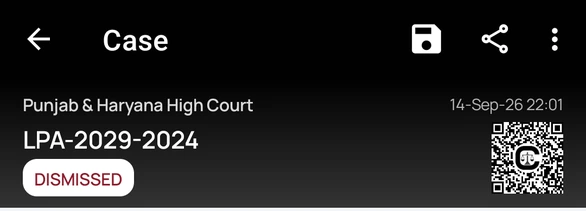
- Point the camera at the case QR code, for example the code on a Court Assistant QR sheet or the code shown at the top of a case's details screen on another phone.
- The case is added to the folder once the code is recognised.
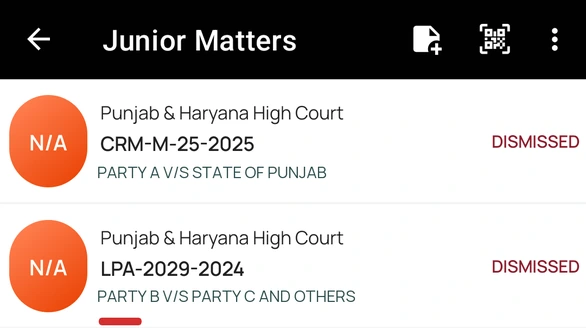
Where to find case QR codes
- Case details: every case shows its QR code at the top of the case details screen. Scan it from a colleague's phone to add the same case to your folder.
- Cause list summary: tick QR Code in the summary options to print a QR code next to each case. Scan it from the printed or shared list.
A QR code identifies the case only. Scanning it does not give access to anyone's notes, tags, or files.
If scanning does not work
- "Camera permission denied.": allow camera access for Court Assistant in your phone settings, then tap Scan again.
- "No valid Case QR code detected.": the code is not a case QR code or CNR. Hold the phone steady with the whole code in view, or add the case with Add Case instead.