Search by CNR
- Open the Search tab.
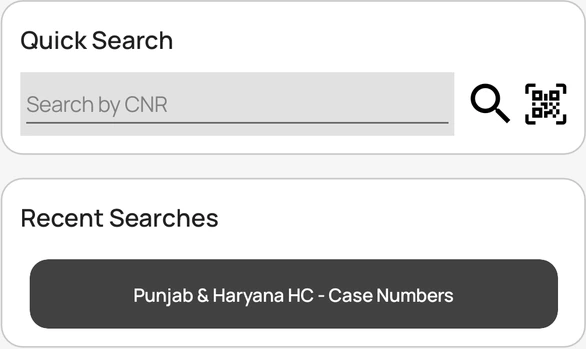
- Under Quick Search, type the 16-character CNR number of the case.
- Tap to search. The case opens in the search results.
- To scan instead of typing, tap and point the camera at the case QR code.
Your recent searches appear under Recent Searches. Tap one to run it again.
Search a court
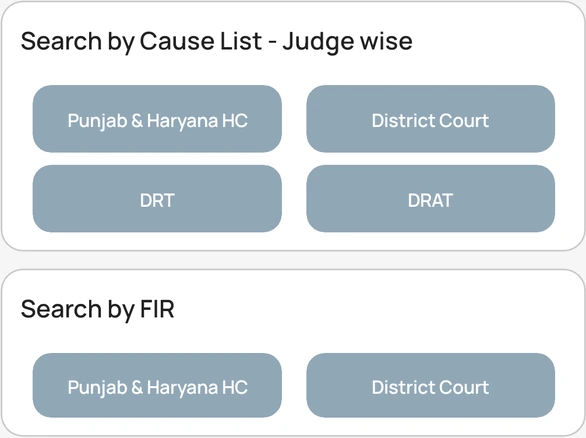
- On the Search tab, scroll to a Search by … card, such as Search by Case Number, Search by FIR, or Search by Cause List.
- Tap the court you want to search.
- Fill in the search details and tap Search.
The search types available depend on the court.
If nothing happens
- Check that the CNR has all 16 characters. A shorter number is not searched.
- If scanning does not start, allow camera access for Court Assistant in your phone settings.